Introduction
Your online accounts contain some of your most important personal information. Email accounts, social media profiles, online shopping accounts, cloud storage, banking services, and work platforms may contain private messages, financial information, documents, photos, and other sensitive data.
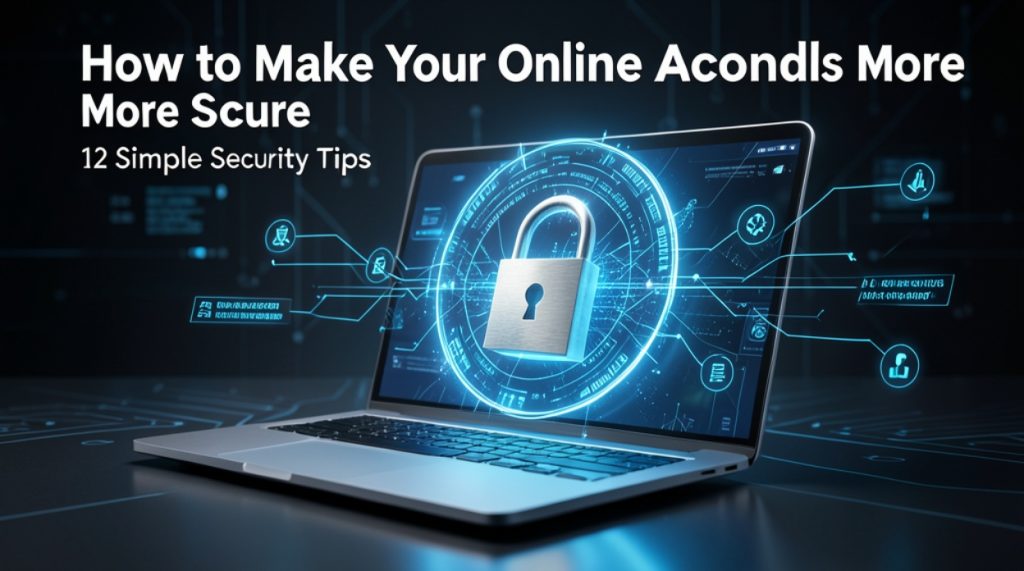
The good news is that making your online accounts more secure does not have to be complicated. A few simple habits—such as using unique passwords, enabling two-factor authentication, keeping your devices updated, and recognizing phishing attempts—can significantly improve your protection.
In this guide, you’ll learn how to make your online accounts more secure and reduce the risk of unauthorized access, password theft, phishing, and other common online threats.
Why Online Account Security Matters
Cybercriminals often target online accounts because a compromised account can provide access to valuable personal or financial information.
If someone gains access to your email account, for example, they may be able to reset passwords for other services connected to that email address.
A compromised social media account could be used to send scams to your contacts, while a stolen shopping account could expose saved personal or payment information.
Strong account security creates multiple layers of protection, making it harder for an attacker to gain access.
1. Use a Strong and Unique Password for Every Account
One of the most important online security habits is using a different password for every important account.
If you reuse the same password across several websites and one website suffers a data breach, attackers may try that stolen password on your other accounts.
A strong password should be:
- Long and difficult to guess
- Unique to that account
- Free from obvious personal information
- Difficult to predict
- Not reused on other websites
Instead of creating short passwords that are easy to remember, consider using long passphrases or randomly generated passwords.
Avoid These Password Habits
Don’t use passwords such as:
123456password- Your name
- Your date of birth
- Your phone number
- Simple keyboard patterns
- The same password for multiple accounts
2. Use a Password Manager
Remembering dozens of unique passwords can be difficult. A password manager can help you create and store strong passwords securely.
A password manager can typically:
- Generate random passwords
- Store login credentials
- Fill passwords into websites and apps
- Help identify reused passwords
- Make it easier to use unique passwords for different accounts
Instead of remembering every password, you generally need to protect the password manager itself with a strong master credential and, where available, additional authentication.
3. Turn On Two-Factor Authentication
Two-factor authentication (2FA) adds another security layer to your account.
Without 2FA, an attacker who obtains your password may be able to sign in. With 2FA enabled, the attacker may also need a second authentication factor.
Depending on the service, the second factor may be:
- An authenticator app
- A security key
- A passkey
- A text message code
- Another approved authentication method
Whenever a service offers stronger authentication options, review them and choose an option appropriate for your situation.
4. Consider Using Passkeys
Passkeys are a newer authentication method designed to reduce reliance on traditional passwords.
Instead of typing a password, you may authenticate using a device-based method such as a fingerprint, face recognition, or device PIN.
Passkeys can help protect against certain types of phishing because they are designed to work with the legitimate website or service for which they were created.
If your important accounts support passkeys, consider adding one as part of your security strategy.
5. Protect Your Email Account First
Your primary email account deserves special attention.
Many online services use email for password resets and account recovery. If someone gains control of your email, they may potentially use it to access other accounts.
For your primary email account:
- Use a unique password or passkey.
- Enable strong multi-factor authentication.
- Review recovery information.
- Check recent login activity.
- Remove unfamiliar devices.
- Keep your recovery options up to date.
Securing your email can therefore help protect many other accounts connected to it.
6. Watch Out for Phishing
Phishing is one of the most common ways attackers try to steal login information.
A phishing message may pretend to come from a bank, social network, online store, employer, delivery company, or another trusted organization.
It may ask you to:
- Verify your account
- Reset your password
- Confirm payment information
- Click an urgent link
- Download an attachment
- Provide a security code
Be cautious when a message creates urgency or asks you to provide sensitive information.
Before Clicking a Link
Ask yourself:
- Was I expecting this message?
- Does the sender appear legitimate?
- Is the website address correct?
- Is the message pressuring me to act immediately?
- Can I open the official website directly instead?
When in doubt, avoid clicking the message’s link and visit the service through its official app or website instead.
7. Keep Your Devices and Apps Updated
Security updates can fix vulnerabilities in operating systems, browsers, applications, and other software.
Turn on automatic updates where practical and regularly update:
- Windows, macOS, Linux, or other operating systems
- Android or iOS
- Web browsers
- Mobile applications
- Security software
- Important desktop applications
An outdated device may contain known security weaknesses that attackers can exploit.
8. Review Your Active Sessions and Devices
Many online services allow you to see where your account is currently signed in.
Check these settings periodically.
Look for:
- Unknown devices
- Unfamiliar locations
- Old phones or computers
- Sessions you no longer use
- Unexpected login activity
If you see something you don’t recognize, sign out of the suspicious session, change your password if appropriate, and review your security settings.
9. Remove Old and Unused Accounts
Old online accounts can become security risks if you no longer monitor them.
If you have accounts you haven’t used for years, consider whether you still need them.
For accounts you no longer need:
- Sign in.
- Remove unnecessary personal information where possible.
- Download anything you need.
- Disconnect linked services if necessary.
- Close or delete the account according to the provider’s process.
Reducing the number of accounts you maintain can make your digital life easier to manage.
10. Be Careful on Public or Shared Devices
Avoid entering sensitive login information on computers that you do not control.
For example, a public or shared computer may contain malicious software or may not be properly secured.
If you must use a shared device:
- Avoid saving passwords.
- Do not select “Remember me.”
- Sign out completely.
- Avoid accessing highly sensitive accounts when possible.
- Never leave your account open after you finish.
Your own updated device is generally preferable for sensitive account activity.
11. Review Third-Party App Access
You may have connected different apps and websites to your Google, Microsoft, Apple, social media, or other accounts.
Over time, some of these connections may no longer be necessary.
Review your account’s connected applications and remove access that you no longer need.
This reduces the number of third-party services that can interact with your account.
12. Secure Your Account Recovery Options
Account recovery settings are extremely important.
Check that your recovery email address and phone number are current and belong to you.
Also review:
- Recovery email
- Recovery phone number
- Backup codes
- Trusted devices
- Authentication methods
- Security questions, where applicable
Store backup codes securely rather than leaving them in an easily accessible location.
How to Check If Your Account Has Been Compromised
There are several warning signs that an account may have been compromised.
Watch for:
- Password reset emails you didn’t request
- Login alerts from unfamiliar devices
- Messages sent from your account without your permission
- Changes to account settings
- Unknown purchases
- New recovery information
- Unfamiliar connected applications
If you suspect unauthorized access, act quickly.
Change the password from a trusted device, sign out of other sessions where possible, enable stronger authentication, review account activity, and follow the service provider’s account-recovery process.
What to Do If Your Password Has Been Exposed
If you learn that a password has been exposed in a breach, don’t continue using it.
Take these steps:
- Change the password immediately.
- If you reused that password elsewhere, change those accounts too.
- Enable multi-factor authentication.
- Review recent account activity.
- Check connected applications.
- Look for unauthorized changes.
- Be especially careful of phishing messages after a breach.
A password that has been exposed should be considered unsafe even if you have never noticed suspicious activity.
Online Account Security Checklist
Use this simple checklist to improve your security:
- Use a unique password for every important account.
- Use a reputable password manager if helpful.
- Enable two-factor authentication.
- Consider passkeys where supported.
- Secure your primary email account.
- Keep devices and applications updated.
- Watch for phishing messages.
- Review active login sessions.
- Remove unknown devices.
- Review third-party app permissions.
- Keep recovery information updated.
- Remove accounts you no longer use.
Common Online Security Mistakes to Avoid
Even people who understand cybersecurity can make simple mistakes.
Avoid these common problems:
Reusing Passwords
One compromised password can put several accounts at risk.
Ignoring Security Alerts
Unexpected login or password-change alerts should not be ignored.
Clicking Urgent Links
Scammers often use urgency to encourage people to act without checking.
Sharing Verification Codes
Never provide authentication codes to someone who contacts you unexpectedly.
Using Outdated Software
Old software may contain security vulnerabilities that have already been fixed by newer versions.
Giving Apps Unnecessary Permissions
Only give applications the access they actually need.
Frequently Asked Questions
What is the easiest way to secure an online account?
Start with a unique, strong password and enable two-factor authentication. These two steps can significantly improve account security.
Should I use the same password for every account?
No. Reusing passwords increases your risk if one service experiences a data breach.
Is a password manager safe?
A reputable password manager can be a useful way to create and manage unique passwords. Choose a trustworthy provider and protect your password-manager account with strong authentication.
Are passkeys safer than passwords?
Passkeys are designed to provide strong authentication while reducing dependence on traditional passwords. They can also provide protection against certain forms of phishing.
What should I do if someone gets into my account?
Secure the account immediately. Change the password, sign out of unfamiliar sessions, enable stronger authentication, review account settings, and use the provider’s recovery process if necessary.
How often should I change my passwords?
Rather than changing passwords on an arbitrary schedule, prioritize using unique passwords and changing them when you believe they have been exposed, reused, or compromised. Follow the security recommendations of the specific service.
Final Thoughts
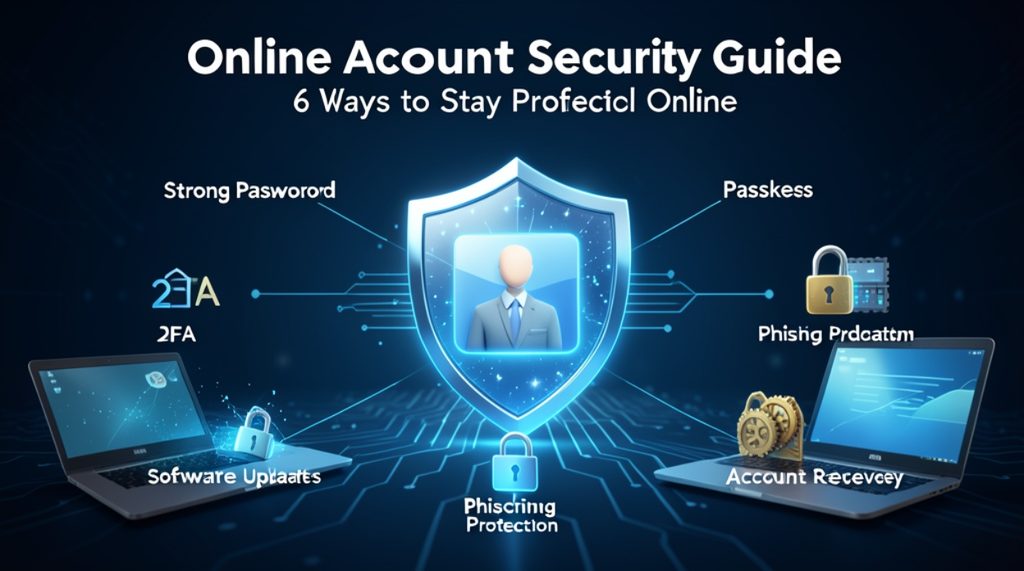
Learning how to make your online accounts more secure doesn’t require advanced technical knowledge. The most important improvements are simple: use unique passwords, consider a password manager, enable two-factor authentication or passkeys, protect your email account, keep your software updated, and learn how to recognize phishing.
Online security works best as a layered approach. No single security measure is perfect, but combining several good practices can make unauthorized access much more difficult.
Start with your most important accounts today—especially your email, financial, work, and cloud-storage accounts—and gradually improve the security of the rest of your digital life.
Quick Takeaway
The best way to protect your online accounts is to use unique passwords, strong authentication, updated devices, secure recovery options, and good phishing awareness.